
Graphic Design TIPS TRICKS HINTS NO NO's
High Resolution
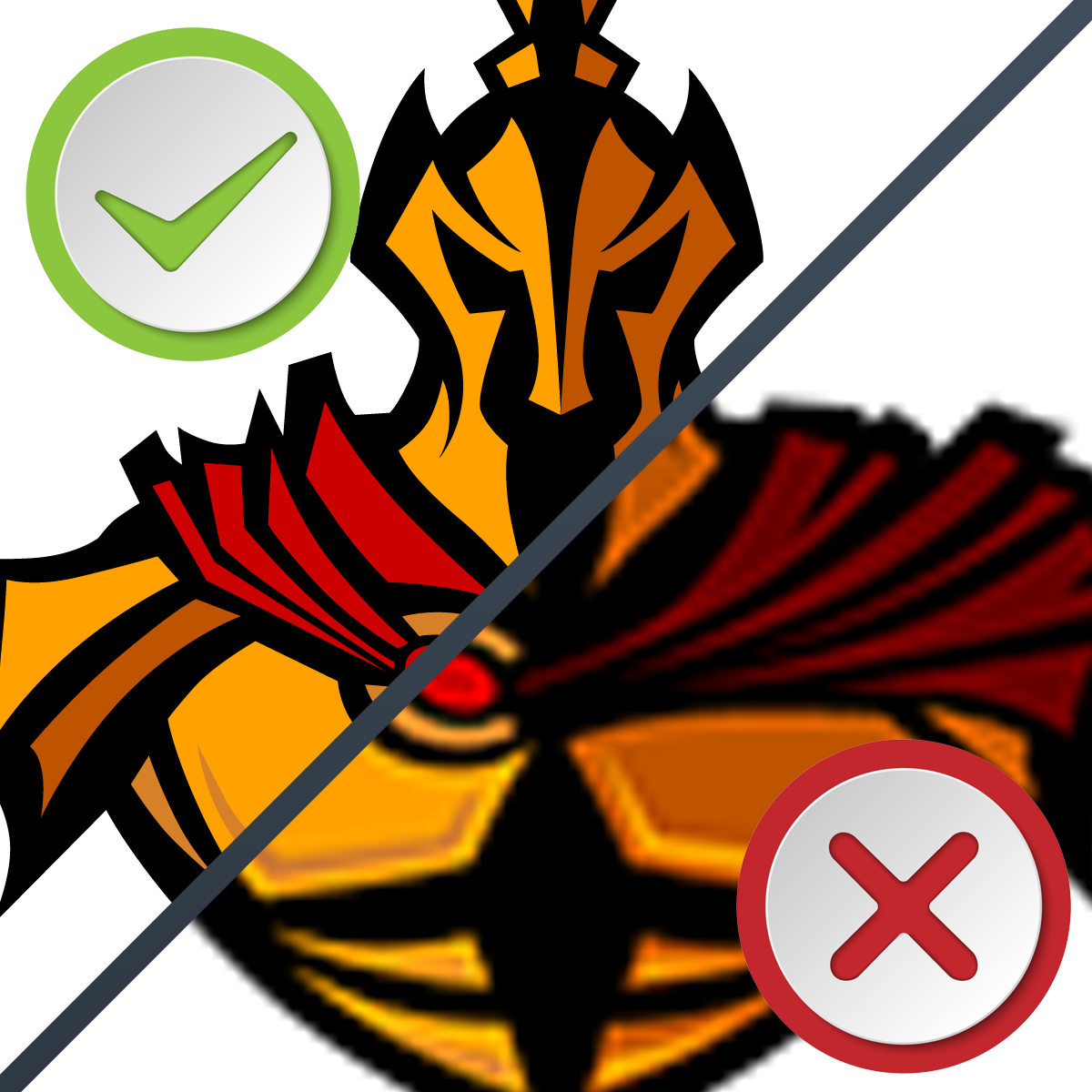
High resolution graphics are the key to making a great design on your shoes or apparel. We all have seen the crime shows where they “enhance” a photo or video. This doesn’t usually work. Poor images create washed out colors, pixellated edges, blurry images, poor contrast against high resolution backgrounds, and other bad effects. This short guide will help you get the best photo/graphic to create the best custom designs.
Low Resolution
We want to help create the most amazing shoes and apparel. This requires high quality images. Low resolution images grabbed from the web often aren’t enough to get the job done right. Keep reading below for tips on how to get the best images possible.
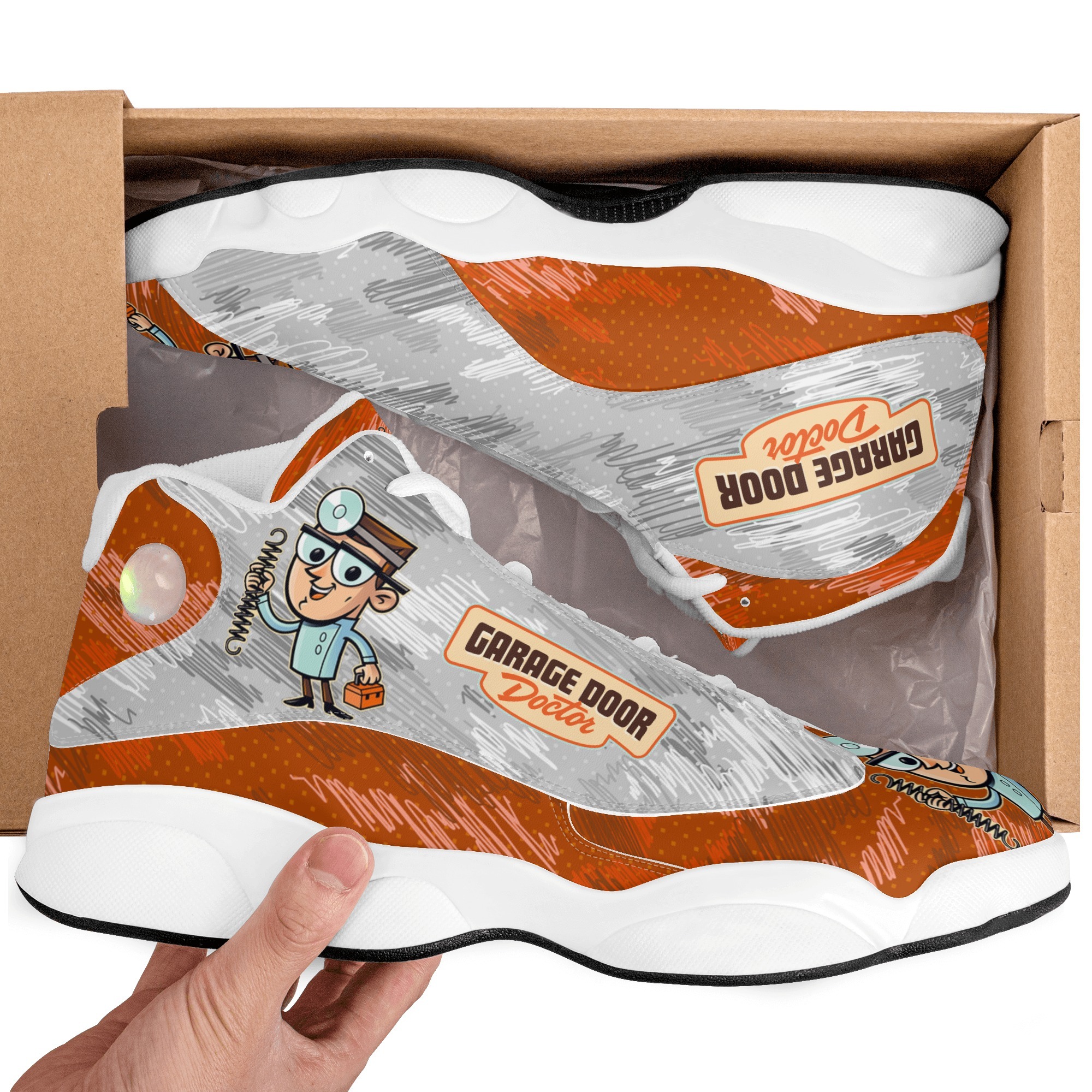
Graphic Tips
We know not everyone is a graphic designer, so here are some tips for finding great graphics:
- Request VECTOR graphics from the graphic owner if possible. These are infinitely scalable without losing quality. Typical file formats are: .ai, .eps, .svg (logos, mascots, etc.).
- If vector graphics are not available, transparent .png files are the next best thing.
- .jpg or other graphic file types are least desireable, but sometimes are the only option depending on what graphic you are trying to use. If you are using a photo, it almost certainly will be .jpg file
- If using anything other than a vector graphic, the SHORTEST side of you image should be at least 1000 pixels wide. While this is still not very large by graphic design standards, it typically will work well enough for shoes, but not necessarily apparel.
- If uploading a graphic for apparel, image should be at least 150 pixels x number of inches graphic will be used. So, a graphic intended to be displayed 8 inches tall would have to be 1200 pixels on the 8 inch side. Double that for best results!
Common Issues
There are some common mistakes the make working with graphics more difficult. Here are some of the common issues that make designing your awesome footwear and apparel most difficult:
- No screenshots from phone or PC. These are typically scaled down when saved and do not work well – especially from a phone.
- If downloading an image from the web using your phone, sometimes these images are also scaled down and difficult to use.
- If downloading from a web page, try opening the image in a new tab first. This is more likely to give you the full size image and will give you a better idea if it will be usable.
- If using a photo from your phone, make sure any graphics, or people are not cut off on the edges. This will create awkward edges when we select your image from the background to use later.
- Don’t just take a small image and “zoom in” – higher resolution of a small image is still a pixellated, unusable image.
Here to help!
Don’t worry! We will do everything in our power to make the best use of your graphics you send us. If we find any eggregious issues, we will reach out to get more feedback or request better images from you.
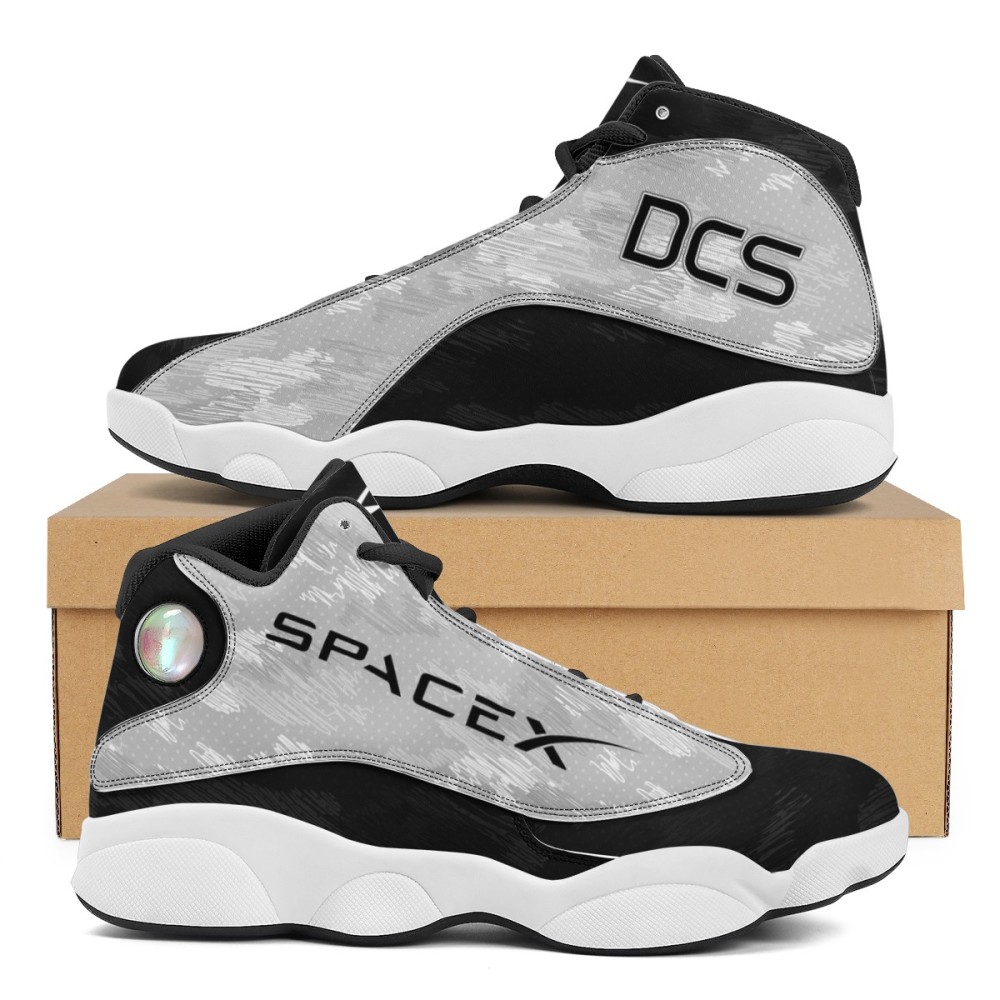
If you have any concerns or want to make sure we give you exactly what you are thinking of in your head, be sure to add “Proof Required” to your order and we will not start production until you give us the final thumbs up. We will provide you with a computerized mockup that will very closely resemble the final product
DISCLAIMER: If your graphic is “good enough” and your instructions are clear. We will move forward without requesting more information. We recommend requesting a mockup/proof before any order, but as this adds time and labor to any project, we must charge for this service. Be mindful when you order that we will take your instructions literally, but we may have to take some liberties to make things fit better, to make colors pop better, or to give you the best product we can. If you are requesting customization please be as specific and detailed as possible! We want you do have the best experience and get the best product. If you have any reservations about your design requests – purchase the “request proof” customiztion add-on.